
STEPdoc
What is STEPdoc?
STEPdoc is a SaaS service that comes integrated with Companion for Business and Companion for Delivery. It generates online documentation for your project, making it easily accessible to your team and stakeholders via a multi-tenant platform.
STEPdoc streamlines the navigation, sharing, and governance of STEP configuration data for both business and IT teams.
Each client can publish up to 5 different documentations (tags) per Companion for Delivery (c4d) or Companion for Business (c4b) license.
Your documentation will be accessible via the following URL: https://companion-stepdoc.cantor.fr
STEPdoc, Companion for Business, and Companion for Delivery
Companion for Delivery (C4D) and Companion for Business (C4B) accelerate the deployment of configurations in STEP environments and simplify the creation of STEPdoc online documentation.
The philosophy behind the Companion suite is to enable users to continue working within their familiar tools, while the suite manages more complex tasks in the background.
- Developers can work in IntelliJ or Visual Studio Code, benefiting from features like suggestions, auto-complete, AI-assisted code generation, and the full range of capabilities these IDEs offer. Git is used for tracking, versioning, and collaboration.
- Business users collaborate through Excel, often using OneDrive for easy sharing.
- All users can explore and access configurations via their preferred browsers (Edge, Chrome, Firefox, Safari) using a user-friendly interface.
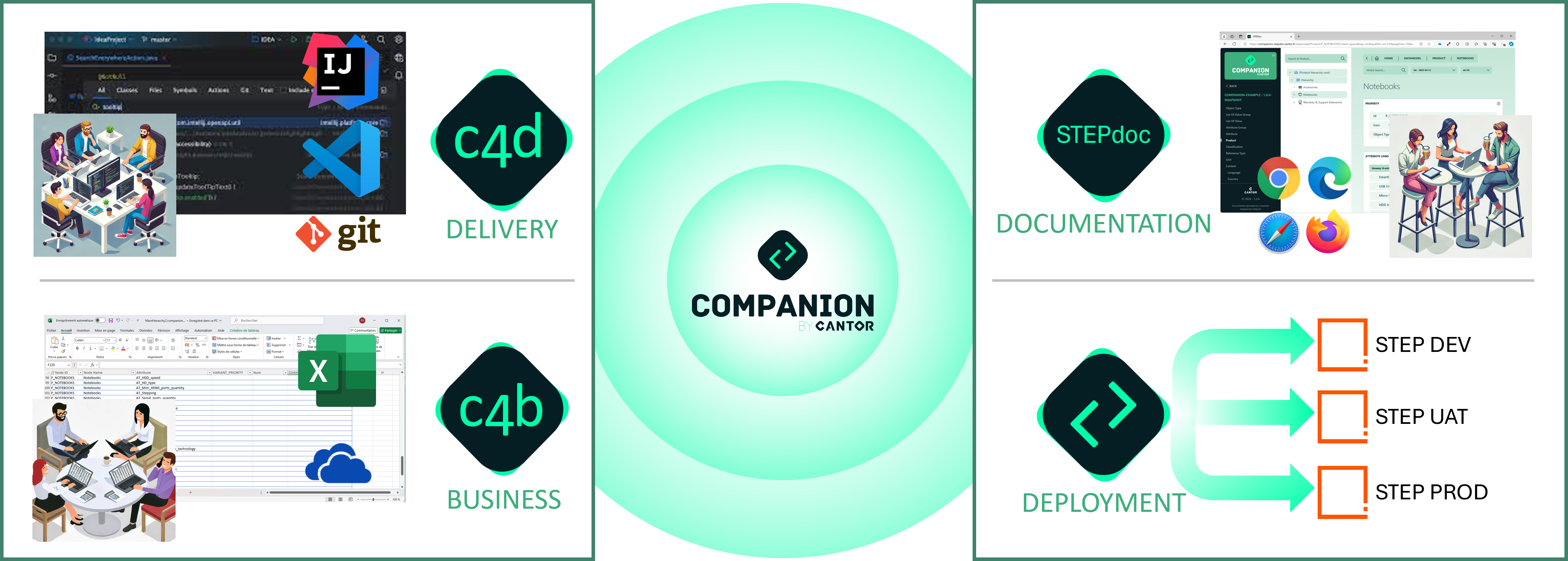
There are multiple ways to generate STEPdoc documentation.
Here’s a quick technical note: under the hood, STEPdoc uses a "STEPXML" file. Companion for Delivery (c4d) generates these STEPXML files, but they can also be generated directly from STEP.
Thus, the first step is to ensure a STEPXML file has been generated.
Methods to Generate STEPdoc
| Where | How |
|---|---|
| In Companion for Delivery (c4d): | Using a Maven command:
|
| In Companion for Business (c4b): | By clicking "STEPdoc":
|
| From STEP: | By using a STEP export designed for STEPdoc. |
| Directly in STEPdoc: |
|
Accessing STEPdoc
Access to STEPdoc can be managed through local accounts provided by Cantor or through your SSO (Single Sign-On).
Please visit the Contact Us section to request configuration for documentation access.
Using STEPdoc
STEPdoc provides a highly intuitive, dual-view interface designed to help you effortlessly explore and understand your STEP configuration.
At the top of every page, the global header features two key selectors:
- Tag Selector: Choose the specific environment or version of your STEP implementation (e.g., DEV, UAT, PROD, or specific release tags).
- Qualifier Selector: Switch between different context qualifiers (if applicable to your configuration) to view context-dependent data.
From the home page, the interface branches into two main, complementary sections: the Data Model view and the JSDoc view. You can easily switch between these perspectives depending on whether you are analyzing structural configuration or diving into technical logic.
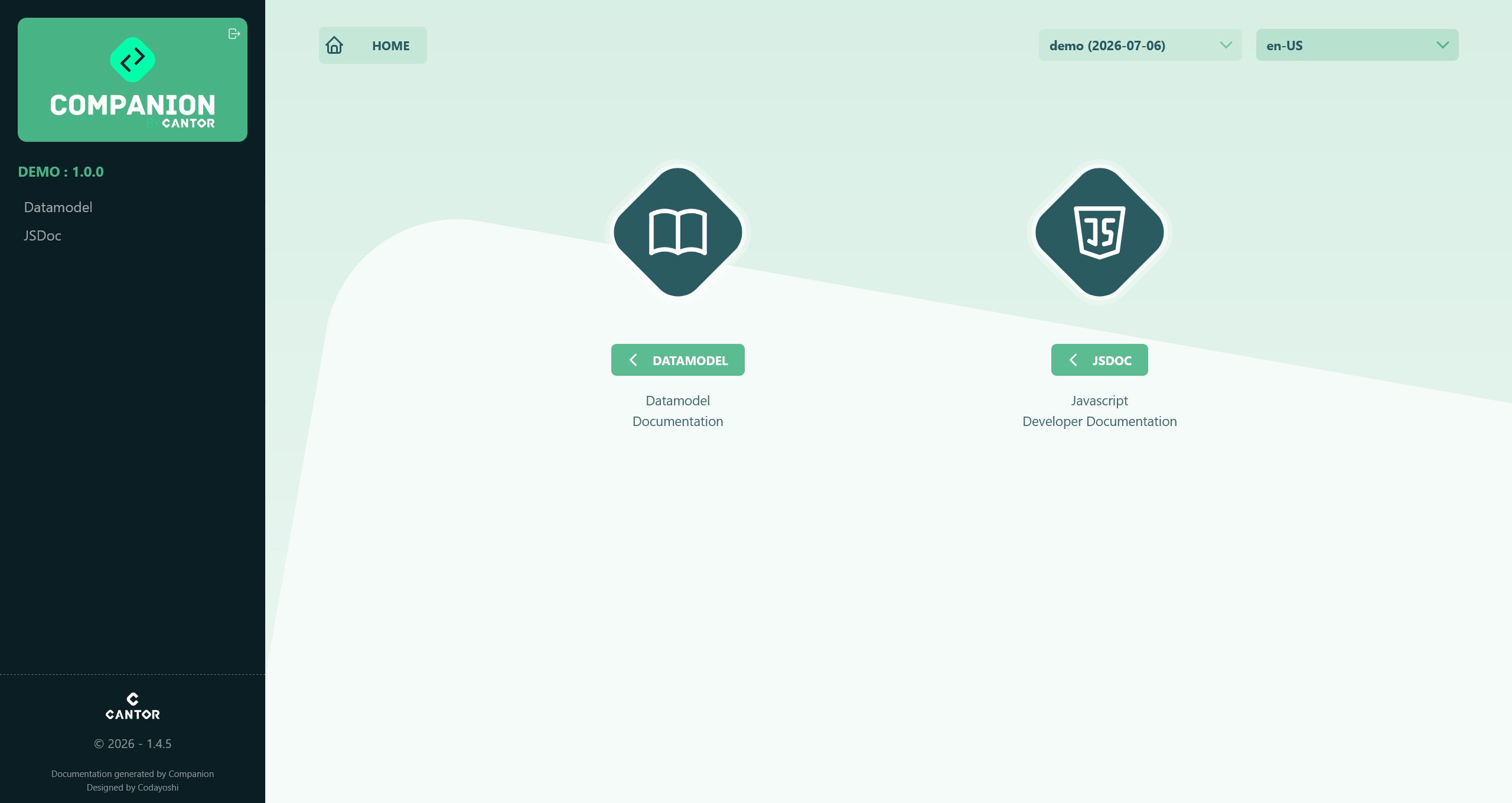
Fig. 1: The STEPdoc home page, highlighting the header with Tag and Qualifier selectors, and the two main entry points: 'Data Model' and 'JSDoc'.
The Data Model View
The Data Model view is your primary hub for exploring the structural configuration of your STEP objects. It translates complex STEPXML definitions into readable, searchable, and highly interconnected web pages.
The exploration in this view is structured around two main levels of detail:
1. Category Tables (The Overview)
When you select a category from the left-hand sidebar (such as Attributes, List of Values (LOVs), Object Types, ...), you land on a Category Table.
- This page acts as a synthetic directory, listing all the elements that belong to that specific category.
- It provides a high-level summary with key columns, allowing you to easily search, sort, and filter through thousands of configuration items to quickly locate the specific element you need.
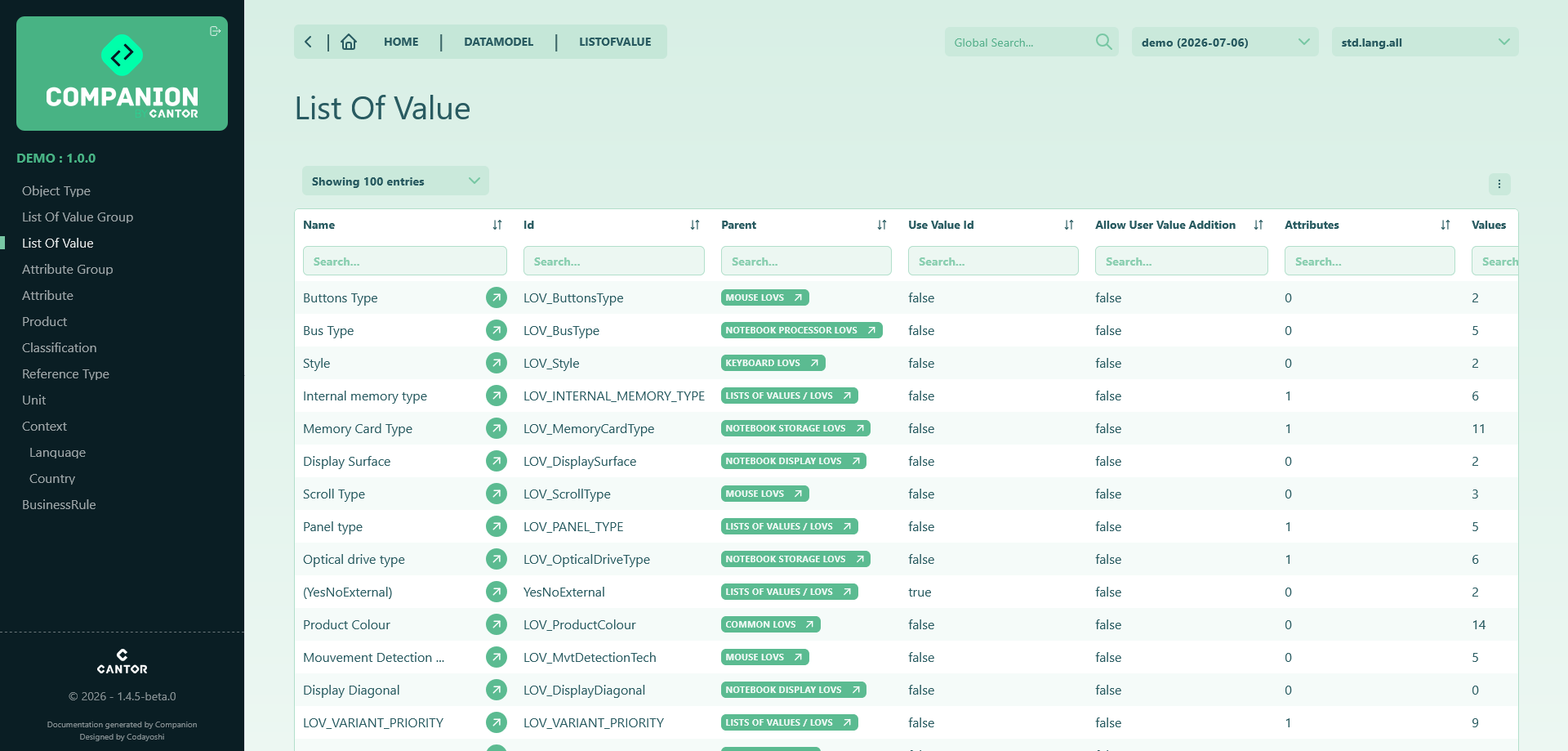
Fig. 2: A Category Table in the Data Model view, providing a searchable and filterable directory of configuration elements (e.g List of Value).
Practical Examples: Sorting & Filtering Use Cases
Category Tables offer powerful column-based sorting and filtering capabilities that turn the documentation into an active data governance and quality assurance tool:
- Analyzing LOV Health & Performance:
- Detecting Oversized LOVs : Sorting the LOV list by the number of values in descending order immediately flags very large LOVs. Bulky LOVs can lead to performance bottlenecks and UI slowdowns in STEP.
- Identifying Empty LOVs : Sorting by number of values in ascending order quickly highlights LOVs with zero values, revealing unused or obsolete entries that can be cleaned up.
- Uncovering Unused LOVs : Sorting the LOV list by the number of linked attributes in ascending order reveals LOVs that are not referenced by any attribute, helping keep the configuration clean and lean.
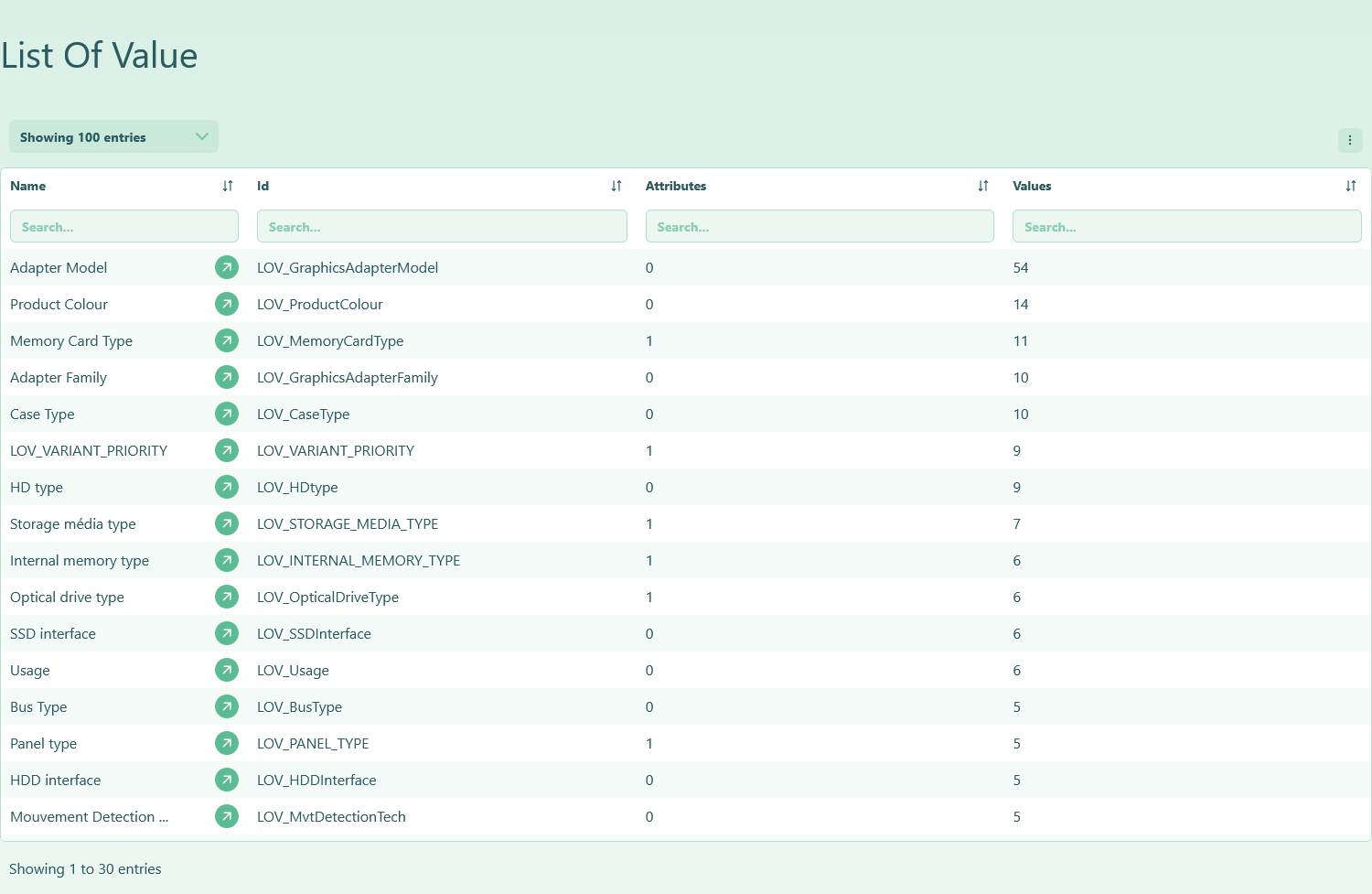
Fig. 3: Analyzing LOV health in the Data Model view: sorting by value count to identify oversized LOVs.
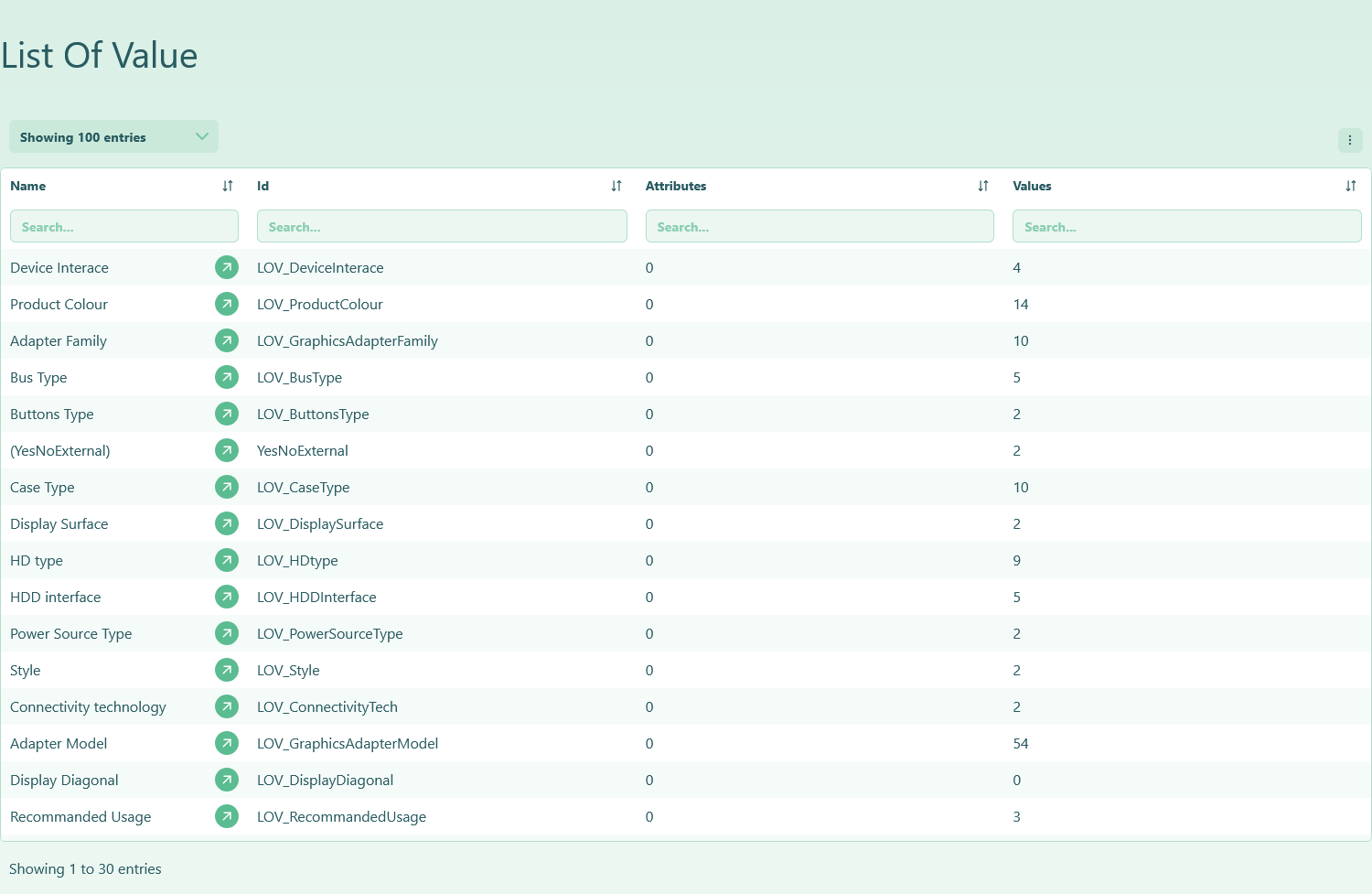
Fig. 4: Analyzing LOV health in the Data Model view: sorting by attributes count to identify unused LOVs.
- Multi-Field Filtering for Instant Attribute Lookup:
- In large enterprise configurations with thousands of attributes, applying one or two column filters allows you to find target attributes almost instantaneously.
- Example: To locate specification attributes related to keyboards, filter
Idwith"keyboard"andTypewith"spec". STEPdoc immediately isolates the matching specification attributes (such asAT_Keyboard_form_factor,AT_Keyboard_language, andAT_Keyboard_stylein our case).
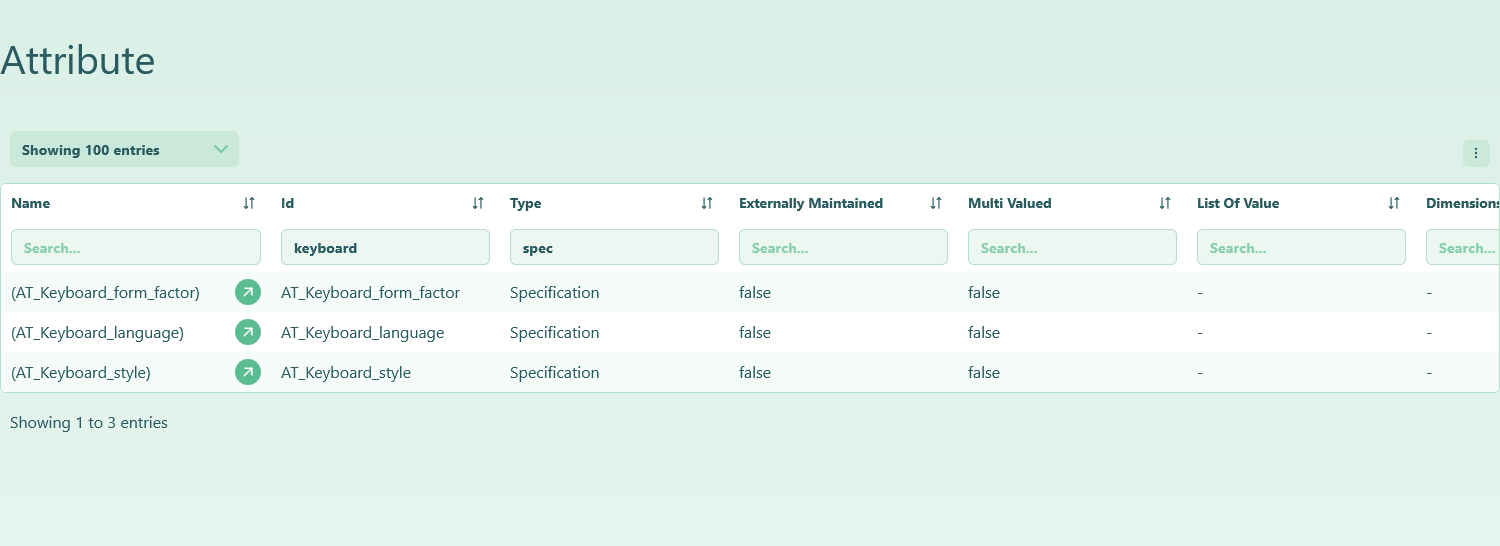
Fig. 5: Multi-field filtering on the Attributes table to instantly locate specific configuration elements (e.g. keyboard specification attributes).
2. Detailed Object Pages (Deep Dive & Interconnectivity)
Clicking on a specific ID from a table opens its Detailed Object Page. This page focuses entirely on that single element, displaying all its specific properties, settings, and descriptions.
Crucially, these detailed pages are the foundation of STEPdoc's linked object navigation. Your entire configuration data model is deeply cross-referenced, allowing you to seamlessly traverse relationships with a single click.
Instead of isolating information, every reference in STEPdoc acts as a bridge to related elements:
- Configuration Ecosystem: Let's say you are viewing an
Object Type. From its detailed page, you can instantly navigate its entire ecosystem: you can browse its parent and child object types, view all theAttributesthat are valid for it, or check exactly whichBusiness Rulesare configured to apply to it. - Impact Analysis (Reverse Referencing): The navigation is bidirectional. If you are inspecting a specific
Attribute, you can quickly trace back every singleObject TypeorList of Values (LOV)that relies on it. This makes evaluating the impact of a configuration change straightforward. - Fluid Exploration: Whether you start from a business rule, a reference type, or a user group, you can effortlessly follow the links through your entire STEP data model to understand how everything pieces together, without ever losing context.
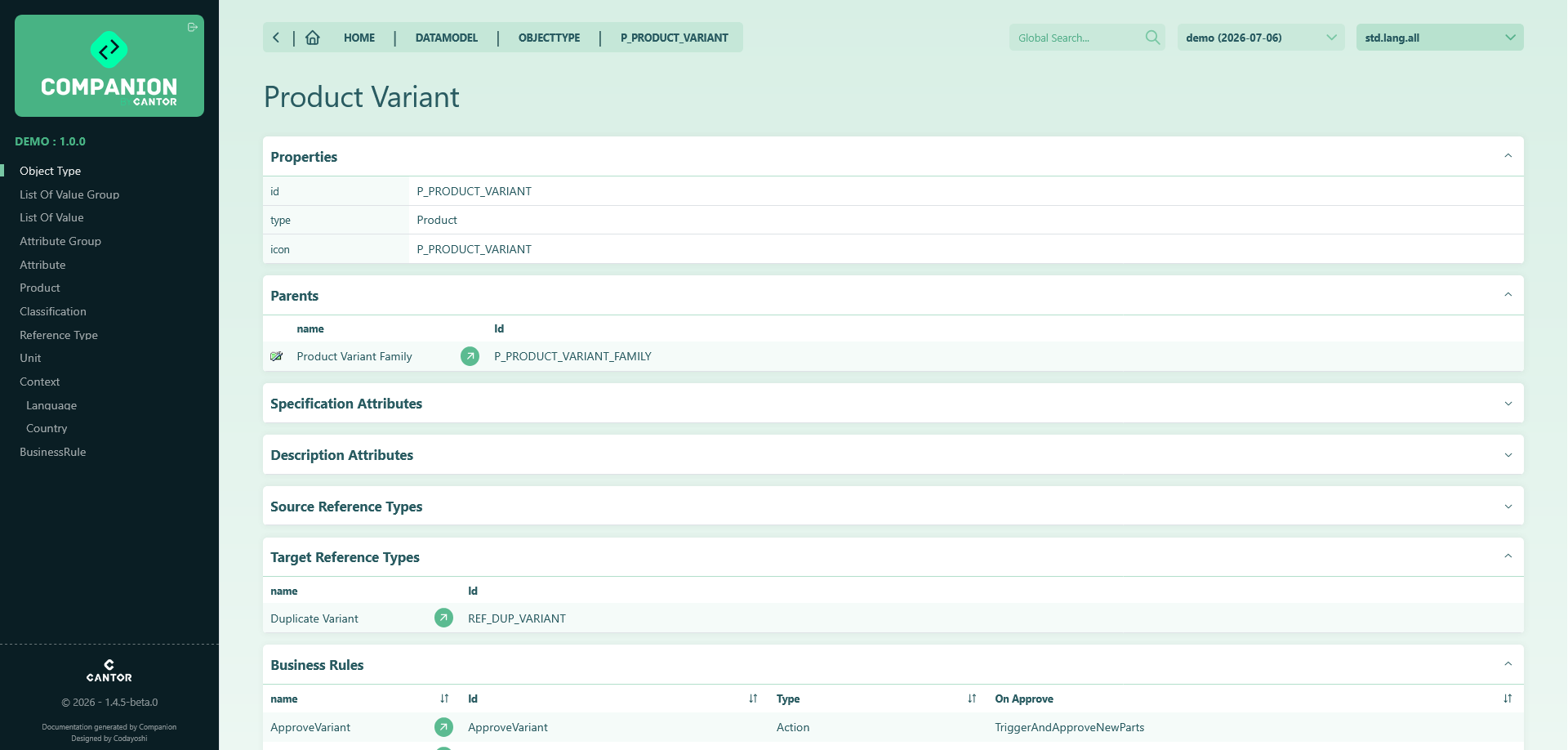
Fig. 6: A Detailed Object Page showcasing specific properties and clickable links to related parents, children, valid attributes, and applicable business rules.
Practical Example: Primary Hierarchy (Blue Hierarchy) & Attribute Inheritance
When browsing your Primary Product Hierarchy (commonly referred to as the "Blue Hierarchy"), STEPdoc provides complete visibility into how attributes, values, and links are structured and inherited across your taxonomy:
Navigating the Hierarchy Tree & Inspecting Nodes:
- The expandable hierarchy tree on the left lets you seamlessly drill down through your classification levels (e.g., Hierarchy > Accessories > Mice) down to specific product items (such as the 200 mouse, ID
NP-37610182). - Selecting a node opens its comprehensive detail view, displaying:
- Properties: Core metadata such as the object's
idandobjectType(P_PRODUCT). - Values: The attributes populated directly on the selected object (e.g.
AT_Recommended_usageset to"PC/notebook"). - Classification & Cross References: Direct links to referenced entities (such as the
Product to supplierlink pointing toHP). - Inherited Attributes Links: Dedicated collapsible sections for each ancestor node (such as the parent category Mice), listing all attributes that are inherited from higher levels in the hierarchy.
- Properties: Core metadata such as the object's
Illustrative Example:
The screenshot below illustrates this mechanism using our standard demo dataset, showing the product 200 (NP-37610182) within theAccessories>Micebranch.
In your own project's STEPdoc instance, this view will dynamically reflect your organization's custom product taxonomy, classification trees, and inherited attribute rules.- The expandable hierarchy tree on the left lets you seamlessly drill down through your classification levels (e.g., Hierarchy > Accessories > Mice) down to specific product items (such as the 200 mouse, ID
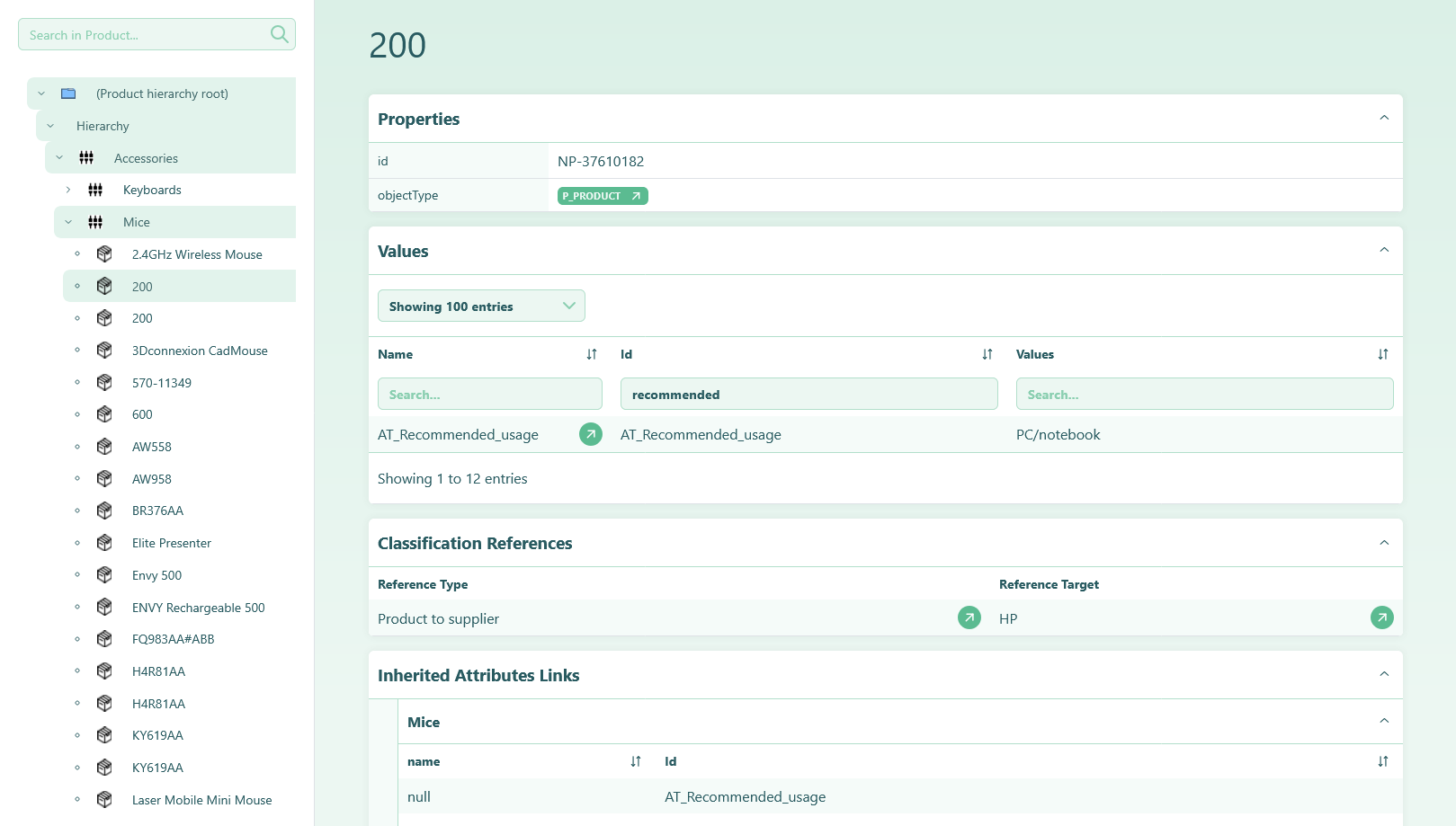
Fig. 7: Inspecting a Primary Hierarchy node (e.g. product '200' under 'Mice'): visualizing object properties, values, classification references, and inherited attribute links.
The JSDoc View
The JSDoc view is dedicated to the technical logic driving your platform. It extracts and formats the documentation for all JavaScript files used within your configuration's Business Rules.
- Focused Navigation: The sidebar in this view specifically lists all Business Rules that incorporate an
Execute JavascriptBusiness Action. - Code & Logic Documentation: Selecting a script displays its JSDoc-formatted documentation, including function descriptions, parameters (
@param), return types (@return), and the source code itself. - Rich Metadata: This view leverages Cantor’s custom parser to display custom metadata directly embedded in your code, bridging the gap between technical scripts and functional documentation (see the Business Rules Metadata section below).
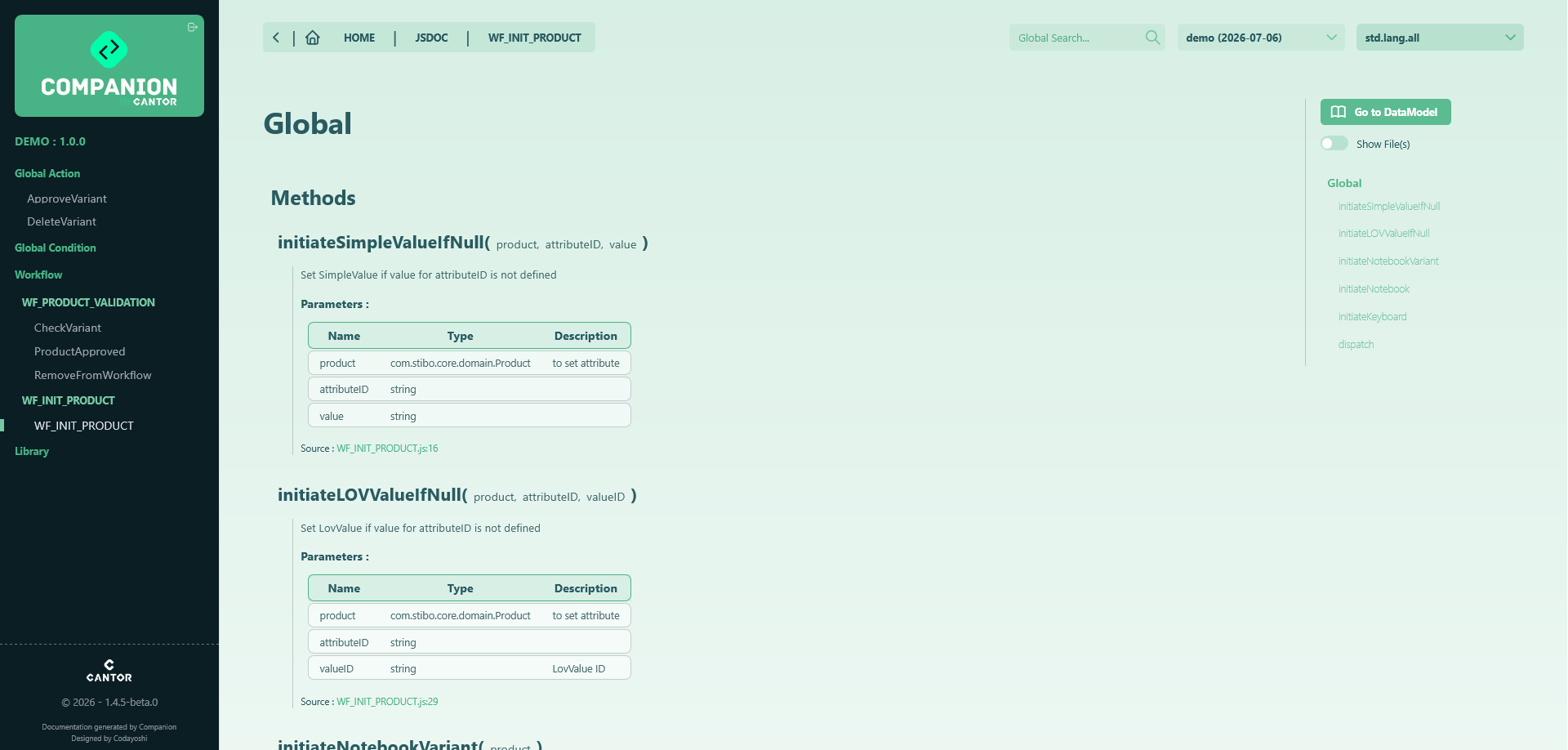
Fig. 8: The JSDoc view, illustrating the sidebar listing JavaScript-enabled Business Rules and the main pane displaying parsed script documentation and metadata.
Seamless Cross-Navigation
STEPdoc is built to unify the functional and technical perspectives. You are never locked into one view: If you are inspecting a Business Rule in the Data Model view and realize you need to see its underlying code, a dedicated button allows you to jump straight to its JSDoc page. Conversely, while reviewing logic in the JSDoc view, you can easily click back to the Data Model to check the rule's structural STEP properties.
Business Rules Metadata
While STEP doesn't natively support metadata for Business Rules, it's a powerful concept for searching, sorting, and describing your BRs. STEPdoc bridges this gap by allowing you to embed metadata directly within your BR's JavaScript files.
This metadata is displayed prominently in the STEPdoc interface, providing valuable context like the BR's purpose or scope at a glance.
A default configuration is provided to define which metadata is available, but you can customize it to suit your needs.
Using the Default Metadata
You can start documenting your Business Rules right away using STEPdoc's default metadata tags. To do this, you must add a JSDoc comment block at the very top of the first JavaScript file associated with your Business Rule (based on its activation order).
By default, you have access to two metadata tags:
@stepdoc-description: Use this tag to provide a detailed, multi-line description of the Business Rule's purpose and behavior. The description must start on the line immediately following the tag.@stepdoc-scope: Use this tag to list the business domains or functional areas affected by the Business Rule. This should be formatted as a list, with each item on a new line, preceded by a hyphen (-).
Here is an example of how you should format the comment block at the top of your file:
/**
 * @stepdoc-description
 * This business rule removes the current product from its workflow.
 * It retrieves the workflow instance associated with the product and deletes it with the "finish" state.
 *
 * @stepdoc-scope
 * - Workflow Product
 * - Product Lifecycle
 */

/**
 * @param {com.stibo.core.domain.Product} product
 */
function exitWorkflow(product)
{
    // ... business rule logic
}
Once applied, this metadata will be visible on both the main Business Rules table and the detailed view for a specific rule.
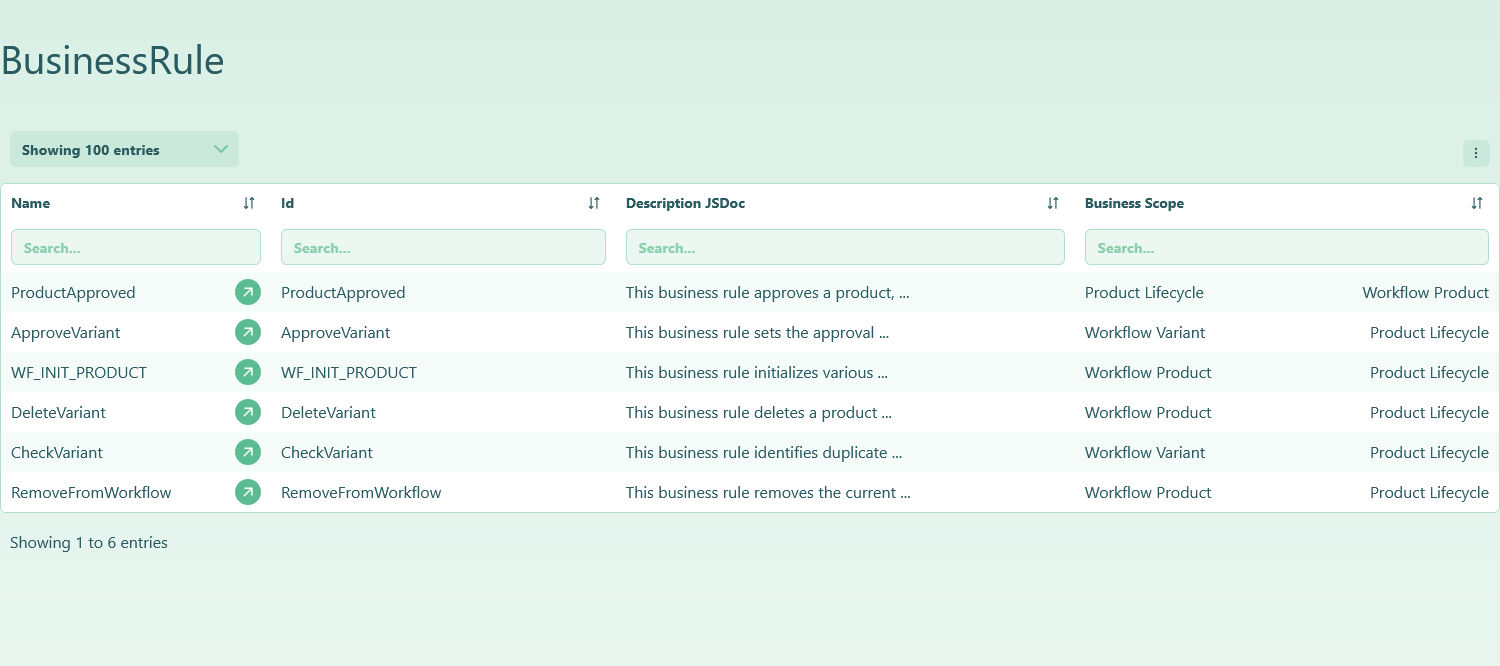
Fig. 9: Default metadata displayed in the Business Rules table view.
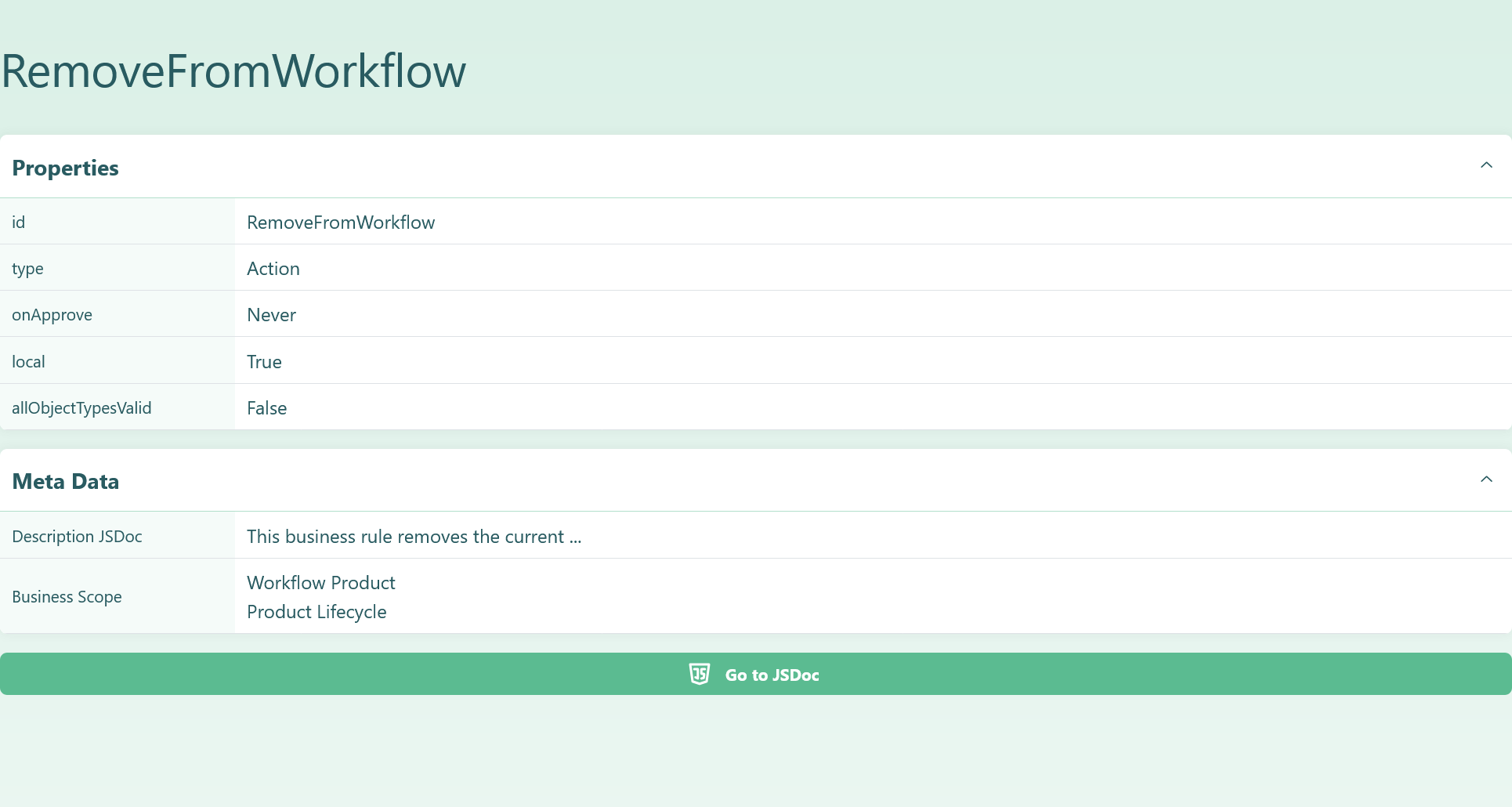
Fig. 10: Default metadata displayed on the Business Rule detail page.
Custom Metadata and Supported Types
If your project requires additional metadata fields, such as jira-ticket or any other custom tag, we can add them to your configuration. This allows you to tailor the documentation to your project's specific needs. The configuration can be applied to your entire client account (affecting all tags) or to a specific tag if needed.
To set up a custom metadata configuration, please Contact Us. When you do, you can specify the following for each desired metadata key:
- Key Name and Type: Provide the name for the tag (e.g., "Author", "Ticket ID") and the type of content it will hold.
- Display Order: You can define the order in which the metadata fields appear on the documentation page.
- Visibility: You can choose to have a metadata field be "hidden". This is a powerful feature that allows you to keep metadata in your source files (e.g., for internal tracking) without it appearing in the final documentation. This way, you can easily toggle its visibility without editing all your source files.
Our team will then set up the configuration for your project.
STEPdoc supports three types of metadata content:
String: A single line of text. Ideal for short-form data like an author's name or a version number.
/** * @stepdoc-author John Doe */Text: A multi-line block of text, perfect for detailed descriptions. The key must be on its own line, followed by the text.
/** * @stepdoc-description * This is a detailed, multi-line description * of what the business rule does. */List: A list of items, useful for categorizing or listing scopes. Each item must start with a hyphen (
-)./** * @stepdoc-scope * - Product Lifecycle * - Data Quality * - Workflow Triggers */
Important: Only use @stepdoc-<key> tags that are defined in the active documentation configuration. Any undefined tag will be ignored and a JSDoc parsing error will be displayed on the corresponding page.